Saturday, January 7, 2023

Use the Philips Hue motion sensor to monitor temperature...

I was looking through the Philips Hue API to see how to interact with the Philips Hue motion sensor, and I was happy to find that the motion sensor includes a temperature sensor.

The temperature sensor will show up in the list of sensors once you add the motion sensor to your Philips Hue Hub.

Here is an example of the response data for the temperature sensor (but only showing one sensor instead of all sensors):

curl http://$HUE_BRIDGE_IP/api/$HUE_USERNAME/sensors

{
    "5": {
     "state": {
     "temperature": 1929,
    "lastupdated": "2023-01-06T16:24:41"
     },
     "swupdate": {
     "state": "noupdates",
    "lastinstall": "2023-01-04T01:35:43"
    },
     "config": {
     "on": true,
     "battery": 100,
    "reachable": true,
    "alert": "none",
     "ledindication": false,
     "usertest": false,
    "pending": []
     },
     "name": "Hue temperature sensor",
     "type": "ZLLTemperature",
     "modelid": "SML003",
     "manufacturername": "Signify Netherlands B.V.",
     "productname": "Hue temperature sensor",
     "swversion": "2.53.6",
     "uniqueid": "00:11:22:33:bb:00:ee:33-22-4444",
     "capabilities": {
     "certified": true,
     "primary": false
    }
    }
}

The temperature value of "1929" converts to 66.72 degrees Fahrenheit.

Here is an example python app that will watch and print out the temperature value returned from the temperature sensor in the Philips Hue motion sensor.

The example app will monitor the temperature sensor, and print out the temperature for each sensor you ask to monitor via a comma separated string of sensor IDs you can pass in on the command line.

I have two motion sensors - one in the garage and one in a room in the house.

The following is the command line I used. Note that I used a comma separated string for the two temperature sensors, and set the monitoring interval to run every 10 seconds:

python3 main.py -b $HUE_BRIDGE_IP -u $HUE_USERNAME -s 5,18 -i 10


Here is an example of the output:

Temp is unchanged. Temp: 55.42

Temp is unchanged. Temp: 66.72

Temp is unchanged. Temp: 55.42

Temp changed! Temp: 67.17


Example app in Github: https://github.com/leewallen/motion-sensor

Friday, December 30, 2022

Playing around with Philips Hue lights from the command line...

We own a bunch of Philips Hue light bulbs now, and we just bought some as a gift for one of our kids. You can use the Philips Hue app on your computer and/or mobile device, but it's also a lot of fun to play with the lights (and other Philips Hue devices) from a terminal or an app that you can write for yourself using the Philips Hue API. 

Register to get access to the Developer's API documentation

You can find the Philips Hue Developer documentation here: https://developers.meethue.com/

The Developer page has a login link. Click the Login link, and then select the Register option at the bottom of the Login form. Or, use this link to get to the Register page.


Find your Hue bridge IP address

Follow the instructions listed here to find the IP address of your Hue bridge.

The easiest method for finding your Hue bridge IP address is to make sure you're connected to the same network that the Hue bridge is connected to and then visit this address: https://discovery.meethue.com/

The response will look something like this:

[
  {
    "id": "112233aabb44cc55",
    "internalipaddress": "10.0.0.1",
    "port": 443
  }
]


Use curl to send HTTP requests

You can use curl to send requests to the Hue bridge.

If you're new to using curl, then watch this short video about curl for sending HTTP requests to a server. In our case, the server will be the Philips Hue Hub using its IP address. We'll pretend that the IP address of the Hue bridge is 10.0.0.1 for the examples.


Go to the Hue API docs

After registering/logging in on the Philips Hue Developer page select the Develop menu and then select the Hue API menu item. 


Create a username

The Hue API requires a username. The username is created and saved by your Philips Hue bridge, and the hub adds the username to a list of usernames that are allowed to send API calls to the Hue bridge.

Follow the instructions here to create a username.


Use curl to get light info from the bridge

  1. Open a terminal
  2. Set a variable in your terminal that will hold the Hue Bridge IP address you retrieved above. For example, if your Hue bridge IP address is 10.0.0.1, then you would enter the following:

    HUE_BRIDGE=10.0.0.1

  3. Set a variable in your terminal that will hold Hue username you retrieved above. For example, if your assigned username is nE1wnTaC00ki3, then you would enter:

    HUE_USERNAME=nE1wnTaC00ki3

  4. Send a curl command to your Hue bridge to get info about all of the lights you currently have associated with your bridge:

    curl -XGET http://$HUE_BRIDGE/api/$HUE_USERNAME/lights

You should get a response that is a JSON string containing information about all of your Hue lights.


Tuesday, February 9, 2021

Use Jupyter Lab with PySpark and S3

If you're having an issue accessing S3 data from JupyterLab, then read on! Perhaps the info here, or in the linked GitHub repo, might help you discover and resolve your issue.

Before I get into any of the details, feel free to use this GitHub repo as an example of how to configure your JupyterLab PySpark notebook (running in a docker container on your local machine) to access data in S3.

I was recently wanting to use JupyterLab to view some parquet data in S3. I chose the pyspark-notebook image from the Jupyter Docker Stacks repo as a base Docker image and added jar files that would allow Spark to connect and read/write data to S3. 

It seemed like it should be pretty easy and technically it was. However, I ended up getting 403 errors when the pyspark code would try to read data from S3. The reason for the 403 error was understandable when I realized what I had done, but I didn't find any posts or documentation that illustrated my exact problem, so I figured I would share it here.

I wasn't setting the credentials provider explicitly when configuring the Spark session. I had passed in temporary credentials as environment variables when running the a script to start the Jupyter Lab container. I retrieved the credentials by using the following command:

aws --profile <your aws profile name> --region us-west-2 sts get-session-token

The default credentials provider was being used because I didn't explicitly set a credential provider to use. I assume that the access key and session key had info tying them to a session so the default credentials provider received an error when attempting to connect since no session token would have been passed to AWS. 

Here is the documentation from Hadoop where it shows the property names and values to use when configuring Spark to access data from S3. It's what I read and realized that I needed to set the credentials provider explicitly. 

The Hadoop documentation also reminded me that you don't need to explicitly set the access key, secret key, and session token in the Spark session configuration if you use the standard AWS environment variable names. It makes sense - I just had been explicitly setting the credentials previously.

You can view a GitHub repo that includes a Dockerfile, run script to start the docker container that passes the AWS credentials as environment variables, and an example JupyterLab notebook that uses pyspark to connect to S3 and download data. The bucket referenced in the example is private, so you'll need to substitute the S3 URI to a URI that points to publicly available data or use a bucket that you have permission to access and read. 

If you're interested in the data I used then you can find it here: the CDC's COVID-19 dataset.


Good luck, and have fun Sparking!

Monday, January 4, 2021

Notes from installing K3s on my Raspberry Pi cluster...

I put a Raspberry Pi cluster together  - now what should I do?

I have a problem when it comes to Raspberry Pis. Actually, I have a problem with impulsivity, but I'll pretend that the issue is exclusive to Raspberry Pis. The great thing is that the cost of the various Raspberry Pi models is low enough that it's relatively cheap to build a cluster. 

I knew I wanted to do the following:

  • Learn more about Kubernetes without using work resources.
  • Try some of the very neat open source projects that are mentioned on the Kubernetes podcast (ie, OpenFaas, MinIO, etc).
  • Play around with some DIY home automation. I'm not completely sure what I want to do yet, but I have a bunch of Philips Hue lights that are begging to be controlled from the cluster.

I did a search for "Raspberry Pi cluster" and "Kubernetes", and found Jeff Geerling's Raspberry Pi Cluster Ep 2 - Setting up the Cluster YouTube video.

Jeff's Kubernetes and Raspberry Pi videos are packed with useful information and he communicates very clearly. Definitely check them out!

I mostly followed his related blog post when I went to install K3s on my cluster. The K3s site has great information as well, and the install steps (all two of them) are very simple to follow. 

However, I ran into an issue or two when I was first setting up the cluster, so I took some notes that I'm providing here. 


Initial OS Selection and Setup


I used Raspberry Pi OS Lite from the Raspberry Pi OS Download page.

Jeff's blog post lists steps for how to copy the Raspberry Pi OS image onto the SD cards, so I'll leave those steps out. However, before I unmounted the SD card I copied the following text to the /boot/cmdline.txt file:

cgroup_enable=cpuset cgroup_memory=1 cgroup_enable=memory


On First Boot


I made the following changes on first boot of each image:

  1. Changed the password
  2. sudo apt-get update && sudo apt-get upgrade -y && sudo apt-get install -y vim
  3. Set the hostname. I named my Raspberry Pis so they matched my network cable colors, so I ran a command similar to this: echo -e "green" | sudo tee /etc/hostname
  4. Set locale, timezone, and WLAN channel country via raspi-config
  5. Updated raspi-config
  6. Changed memory available to the GPU to 16 MB (A3 Memory Split)
  7. Expanded the file system to max size available

There is (or was) an issue with Raspberry Pi OS Lite (Raspbian Buster) from a recent update, and the cgroup info that is added to /boot/cmdline.txt was being ignored. The work-around is to run a raspberry pi update.

sudo PRUNE_MODULES=1 RPI_REBOOT=1 SKIP_WARNING=1 rpi-update

Before Installing K3s

There is a section on rancher.com where it shows that if you are using Raspian Buster (which is Raspberry Pi OS Lite) then you should enable legacy iptables:

sudo iptables -F
sudo update-alternatives --set iptables /usr/sbin/iptables-legacy
sudo update-alternatives --set ip6tables /usr/sbin/ip6tables-legacy
sudo reboot

I ran the following on each of the Raspberry Pis:

echo -e "10.0.1.1\twhite" | sudo tee -a /etc/hosts
echo -e "10.0.1.2\tred"   | sudo tee -a /etc/hosts
echo -e "10.0.1.3\tgreen" | sudo tee -a /etc/hosts
echo -e "10.0.1.4\tblue"  | sudo tee -a /etc/hosts
echo -e "10.0.1.5\tblack" | sudo tee -a /etc/hosts

Installing K3s

SERVER INSTALL

This will tell the installer that it is a server because the K3S_URL wasn’t set:

curl -sfL https://get.k3s.io | K3S_KUBECONFIG_MODE="644" sh -s -
AGENT INSTALL

Get the token from the leader node and trigger the download and execution of the install script. The first Pi in the cluster has a white network cable, so I arbitrarily chose it as the leader node. I ran the following on each of the follower nodes.

export TOKEN=`ssh -t pi@white sudo cat /var/lib/rancher/k3s/server/node-token`
curl -sfL https://get.k3s.io | K3S_URL=https://10.0.1.1:6443 K3S_TOKEN=$TOKEN sh -

Test the Cluster

If you haven’t already installed kubectl, then install it now.

Copy the /etc/rancher/k3s/k3s.yaml file from the leader node of your Raspberry Pi cluster, to ~/.kube/config on whatever computer you plan on using to access the cluster. The location might be different on a Windows machine, but that would most likely be the correct path if you’re using the bash shell.

scp pi@white:/etc/rancher/k3s/k3s.yaml ~/.kube/config

Now run kubectl get pods —all-namespaces and see that the cluster already has pods running on the nodes.

Let's Run Something!

I found Alex Ellis's blog post called "Will it cluster?" and followed his instructions for installing OpenFaas. It seems funny now because I had no idea who Alex Ellis was at the time. I only tried OpenFaas because of the "Will it cluster?" blog post. 

I installed OpenFaas, copied the service and deployment yaml files Alex provided in the "Will it cluster?" post, and was able to use the Figlet application in just a few minutes. Very neat stuff!

I recommend going to the OpenFaas.com site to learn more about using OpenFaas. 

This example shows that sending text to one of the nodes in the cluster (it doesn't matter which node you pick) will run the figlet function - a function that converts your text data into an ASCII art version of the text.

> echo -n "Hello" | curl --data-binary @- http://red:31111
 _   _      _ _
| | | | ___| | | ___
| |_| |/ _ \ | |/ _ \
|  _  |  __/ | | (_) |
|_| |_|\___|_|_|\___/

Sunday, August 23, 2020

K3s Raspberry Pi 4 Cluster

Do you have an interest in Raspberry Pis and cluster computing? Me too! 


Parts


One thing that I have enjoyed about building the Raspberry Pi cluster is that it's inexpensive to build up over time. 

I bought the Raspberry Pis and the PoE hats from Canakit, and everything else was bought from Amazon. Amazon had higher prices for the Raspberry Pi PoE hat, and didn't have a Raspberry Pi 4B 8GB board available when I first started buying the parts. 


Here is a list of what I bought for the cluster. 

Part My Choice Qty Links
Case Cloudlet Cluster Case 1 Amazon
Raspberry Pis RPi 4B+ 8GB 5 Canakit
Amazon
PoE Hats Raspberry Pi PoE HAT 5 Canakit
Amazon
SD Cards SanDisk 128GB microSDXC 5 Amazon
Network Switch  TP-Link 8 Port PoE Switch  1 Amazon
Network Cables Cat7 1FT Multi-Color 1 x 5pk  Amazon

Case


I used the Cloudlet Cluster Case by C4Labs.
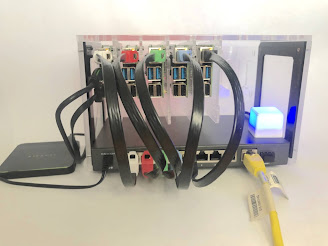
Very tiny, but fulfilling, RPi cluster.


It practically hums like the WOPR!


I found the case by searching on Amazon for "Raspberry Pi Cluster Case', and the Cloudlet Cluster Case was the first result I saw that I really liked. I like the look of the stackable cases, but the Cloudlet Cluster Case reminded me of a very tiny computer rack - it felt right.

The case has mounting boards and hardware for 8 Raspberry Pis. You mount the Raspberry Pi onto the acrylic board, and then the mounting board easily snaps into the case. 

This is great for allowing you to start very small and expand as you would like. The price might seem like a considerable jump from the stackable case options but I still picked the Cloudlet Cluster Case because I think it looks nice, it's very sturdy, and had enough room for the network switch. 

You can also see a blue square in the image above - that's the Blinkstick Square with an enclosure. I plan to set up monitoring for the cluster, and for a variety of webhooks, and use the Blinkstick Square for showing status. I figured I would use white, red, green, blue, and purple to indicate which Pi/Node the status was for. 

 Raspberry Pis


Originally I was going to build a cluster from a couple old Raspberry Pis I have that I hadn't been using, but I bought a Raspberry Pi 4 bundle for my daughter and the performance is so good that I decided to get the newer Pis instead. 

I would have liked to have bought the Raspberry Pis from Amazon, because I appreciate the customer service you get from Amazon. However, I have had great luck with smaller businesses that sell Raspberry Pi products, and usually they have better prices than what you would good from Amazon. Canakit had Raspberry Pi 4B 8GB boards available before Amazon, and the price is about $15 cheaper. Vilros and the PiShop also had Raspberry Pi 4B 8GB boards listed, but had the same price as Canakit.

PoE Hats


I found a few PoE hat options, but I went for the official Raspberry Pi PoE hat. 

The price was better than most options, and I assumed there would be more testing around the official option. Also, one PoE hat that I looked at seemed to have a nicer profile but the seller suggests buying a fan for it. The official Raspberry Pi PoE hats come with fans attached and there is no issues with clearance in the Cloudlet Case. 


SD Cards


I bought 128 GB SD cards for each of the Pis. I didn't need SD cards that hold that much data because I can attach an external HDDs or SSDs to add storage. If I were to do this again, then I think I would buy smaller SD cards, and use the saved money to go towards external drives.


Network Switch


I bought an 8 port PoE switch from TPLink mainly because it was the cheaper option between it and a Netgear 8 port PoE switch. The TPLink switch is $30 cheaper than the Netgear equivalent. I had no problems at all - it works great with the Raspberry Pi PoE hats. There were no special configurations for the Raspberry Pi, no jumper settings for the PoE hat, and nothing to configure for the switch. Just connect all the things.


There will be a post coming soon that will list the steps I took to set up the Raspberry Pis and get K3s installed. It was relatively simple, but not completely hassle-free. The first time I was able to see that all nodes were running and available to the cluster made it worth it. 

Saturday, August 22, 2020

Welcome to 2020! Err...I mean, welcome to August 2020!

I love home projects where the main purpose is to learn something new. The only projects I love more are the next learning projects.

Here are some areas I want to learn more about:
  • Kubernetes
  • Tracking useful metrics
  • For the near future:
    • Serverless for Kubernetes
    • Load testing at a small scale
    • Data pipelines

Some of the items are very easy to explore at work but not all of them, so I plan to focus on projects that are not work specific.

Kubernetes


You might ask, "Who isn't using Kubernetes?"

Well, I wasn't until recently!

It's been really fun. There are so many open-source projects that I want to use that will easily run on Kubernetes that it's almost hard to force myself to start at the beginning and learn how to set up and manage a cluster. Or even a tiny cluster - but that's what I'll do first!

I had wanted to make a Raspberry Pi cluster for a while and this provided the excuse. I bought some Raspberry Pis, a nice case, an unmanaged switch that had 8 PoE ports, PoE hats for the Raspberry Pis, SD cards, and network cables. I put the Pis in the case, installed k3s (Lightweight Kubernetes), and now I just need some projects to help provide areas to start digging!

I'll share the steps I followed, parts I used for putting the cluster together, and anything I might do differently if I were to start over in the near future.

Tracking Useful Metrics


One of my first plans for the cluster will be to add metric tracking. I'm not sure what metric tracking options there are, so I searched to find out what other people are using. I found a number of references to this cluster-monitoring repo, and it looks like the setup for k3s is very simple. I forked and cloned that repo, followed the quick start info for k3s (updated some configs), and Prometheus, AlertManager, and Grafana were soon available and showing some useful metrics!

I'll create a post about what I learn with monitoring in the near future. 

Recommendations:


Following the Quickstart for K3s from the carlosedp/cluster-monitoring repo was very straightforward, and it would be my suggested monitoring choice to anyone setting up a Raspberry Pi based Kubernetes cluster. I might change my mind, but for now it seems like an easy and quick way to go.

For now I suggest forking the repo, and then push any changes you make to vars.jsonnet to your cluster-monitoring repo. That way you can add/remove monitoring for your cluster quickly using a script that clones your repo first.

Near Future Projects


There are a number of things that I want to explore at home:
  • Serverless options for Kubernetes (for example, OpenFaaS, KNative, and Kubeless)
  • Load testing at a small scale (for example, run load tests against a single service as part of a CI pipeline, or run a set of load tests against a smaller version of your production environment)
  • Explore a variety of data pipelines


Saturday, December 21, 2019

Taco Cat Goat Cheese Pizza - A great family game!

Taco Cat Goat Cheese Pizza!

Now say that 5 times really fast. It's hard to say. Now imagine having to say "Taco" "Cat" "Goat" "Cheese" "Pizza" in turn while laying down pictures of things that don't match the words. Then imagine having to slap your hand down on the card if the word you say matches the card. It's really difficult but fun!

Then add narwhals, groundhogs, and gorillas to the mix.


That's what you get with the game Taco Cat Goat Cheese Pizza. 


Fun and sore hands. And lots of laughter!
I bought this game a while ago but we only recently played it. It was surprising how much fun we had within the first round of playing it. We can hardly wait to play it again!

The suggested age is 8 years and up, but if you have a child that can read fairly well, then it is probably fine for younger ages. It was definitely no problem for our 7-year-old daughter. She did much better than I did!

Wednesday, June 26, 2019

Install Oh-my-zsh and powerline fonts on Ubuntu 18.04

I recently installed Ubuntu 18.04 on my X1 Carbon (1st Gen that sat under the bed for years), and I'm actually enjoying using this notebook again!

The first thing I did was install a few basics that included oh-my-zsh. I love the information that the prompt displays for your git repos. Shown below is oh-my-zsh using the agnoster theme. 

Oh-My-Zsh with Git Repo Status

However, if the powerline fonts aren't installed, then it doesn't look so great. The icons show up as boxes with X's in them. 

I didn't have the powerline fonts installed, so I searched for the correct way to install the fonts on Ubuntu and found that a bunch of people were having difficulties.

I ended up following the directions on the powerline font github repo's README, and it worked without too much effort, so I figured I would post all the steps I followed to get oh-my-zsh installed and configured the way I like it.

Oh-My-Zsh and Powerline Font Install

First, install oh-my-zsh.
sh -c "$(curl -fsSL https://raw.githubusercontent.com/robbyrussell/oh-my-zsh/master/tools/install.sh)"

After the install, you end up with a .zshrc file in your home directory. I updated the .zshrc file to use the agnoster theme instead of the default theme of robbyrussell. Just update the ZSH_THEME value.
ZSH_THEME="agnoster"

Second, install the powerline fonts so you can see the nice status icons for the current directory of your git repos. You can install the fonts this way:
sudo apt-get install fonts-powerline

Or by cloning the git repo and running their install script:
git clone https://github.com/powerline/fonts.git --depth=1
cd fonts
./install.sh
cd ..
rm -rf fonts

If after running those commands (which probably only needed to consist of the apt-get install), the prompt for zsh has not started showing the nice status icons and colorized branches, then you can update the fontconfig information by creating a file in this directory (create the directory if it doesn't exist):
~/.config/fontconfig/conf.d

Then copy this file to ~/.config/fontconfig/conf.d.

Followed by running the font config cache command, which will force the font config cache to be update (-f) and display status information (-v).
fc-cache -vf 

It was after I ran the fc-cache command that I noticed the terminal show the git repo status information with the branch and status icons. I used both the apt-get install fonts-powerline method, and the 

Sunday, January 27, 2019

Yeoman generator for creating a terraform directory structure for AWS providers...

I use AWS for work, and use terraform for creating the resources. My team uses a common directory structure for our terraform files, and it seems to work pretty well for separating resources between project groups, logical environments, and regions. However, creating new project directory structures can be a pain, so I decided to create a yeoman generator to automate the process. 

Please check out the generator I made, and let me know what you think!

Clone from git:
git clone https://github.com/leewallen/generator-tf-proj.git

Install using npm:

npm install --global generator-tf-proj

Generate a terraform project structure using yeoman:

yo tf-proj

Saturday, January 20, 2018

AWS IoT Button and Philips Hue API...

I bought some Philips Hue Lights, and have really enjoyed them - but I enjoy them even more now that I have the IoT button integrated with the lights. 

Here is a video showing my AWS IoT button interacting with my Philips Hue Go lamp.


Philips Hue API:

The Philips Hue REST API is really easy to use to retrieve information about the lights connected to the Hue bridge, and for controlling the lights. You can follow the instructions on this page to help you get up and running with the API.

AWS IoT Button:

I had seen the AWS IoT button on Amazon and, although I didn't have any ideas of what I would do with the button, I wanted to work on a project which would use one of the buttons. I found this fun project that also uses an AWS IoT button, and the Philips Hue API with the Go lamp. I had bought a Philips Hue Go light, as well as a number of other Philips Hue lights, so I decided to recreate the project from the youtube video above but using an AWS lambda instead of using a raspberry pi. 

Something that was pointed out to me (embarrassingly) is that this method is not secure. Sending unencrypted information to the Hue bridge, which includes the auth, would allow an attacker to send their own API calls to the bridge. One of the API calls could have a security hole that could be used by an attacker / curious person. 

A couple of ideas I've had for using the Philips Hue lights are flash lights with certain colors to indicate either a rise above, or drop below, stock or crypto currency price points, and flash lights when people are close to home (integrate with IFTTT).

However, using the IoT button to control the lights looked fun and gave me an excuse to learn a little bit about AWS Lambdas. It's worth mentioning that Philips makes a switch that can be easily programmed to control your Philips Hue lights.

Parts list :

- Philips Hue Go light, but it works with all of the Philips Hue color lights
- AWS IoT Button

Set up IoT Button:

I used the "Getting Started" guide to set up the IoT button.  It walks you through registering your device, creating and activating a device certificate, creating and attaching an IoT policy to the device certificate, attach the certificate to a "Thing" (the button), and configuring your IoT button to know how to connect to your WiFi.

One of the last steps in the "Getting Started" guide is configuring and testing rules. The example has the IoT button pushes send an SNS message that gets sent as a text message to your phone. I decided to have the SNS message trigger a lambda, and use the lambda to send the REST calls to my Philips Hue bridge.

AWS Lambda:

Here is the AWS Lambda code that I used:


I have my router configured to use Dynamic DNS, and then I have a port forwarding rule to forward to the Philips Hue bridge.  The lambda figures out if the button click was a single click, a double click, or a long click.  The double clicks will turn the light on and off, the single click will increment the hue to set the light to, and a long click will set the light to use the color loop effect.

I hope you find this post useful! Please leave links to any projects you feel like sharing using AWS IoT buttons and/or Philips Hue lights in the comment section below.

Sunday, August 6, 2017

Create an AWS Lambda using Java...

Here's a quick walk through for creating an AWS lambda using Java. I happen to use IntelliJ with maven, but you can use whatever IDE and package management you prefer to use. You can find a similar walk-through in the online AWS documentation or in the AWS Lambda In Action book.

1. Create an IAM role for the Lambda to use:
  • Click the "Create new role" button.
  • In the "Select role type" section, Click the "Select" button for "AWS Lambda" from the "AWS Service Role" section.
  • Enter the policy name of "AmazonS3FullAccess", click the check box, and click the "Next step" button.
  • Enter a name in the "Role name" text box (for this example, use "hello-lambda-role"), and enter a fitting description in the "Role description" text box. Click the "Create role" button.

2. Create an S3 bucket.

3. Create a Java project for your AWS Lambda code:
  • Using IntelliJ, create a maven project using maven-archetype-quickstart.
  • Add the aws lambda core dependency to the project's pom file:

<dependency>
  <groupId>com.amazonaws</groupId>
  <artifactId>aws-lambda-java-core</artifactId>
  <version>1.1.0</version>
</dependency>
  • Create a class called HelloWorldLambda that implements RequestHandler<String, String>:

public class HelloWorldLambda implements RequestHandler<String, String> {
@Override
public String handleRequest(String input, Context context) {
    String output = "Hello, " + input + "!";
    return output;
}
}
  • Build the project so that the jar is created setting the output jar name to be HelloLambda.jar.


4. Create the lambda in the AWS console:
  • Click on the "Get Started Now" button.
  • Click on the "Blank Function" item.

  • On the "Configure triggers" page, click in the grey dashed square and then select "S3".
    • Select the bucket that you created in step 2.
    • Select the event type "Object Created (All)".
    • Click "Enable trigger".
  • Click the "Next" button. 
  • Enter a name for the lambda like "hello-lambda"
  • Select "Java 8" for the Runtime

  • Click on the "Upload" button and select your HelloLambda.jar.

  • In the "Lambda function handler and role", enter the full package path to your HelloWorldLambda class.
  • Select "Choose an existing role" for the Role section.
  • Select the "hello-lambda-role" that you created in step 1.

  • In the "Tags" section, enter the value "Name" for the key, and "hello-lambda" for the value.

  • In the "Advanced settings", increase the memory to 512 MB. Leave the timeout at 15 seconds.

  • Click the "Create function" button.


5. Test the lambda!

* Go to "Functions" section of the AWS console's Lambda page.
* Select the "hello-lambda" function by clicking the option button.
* Click on the "Actions" drop down, and click on "Test function". The "Input test event" dialg will appear.
* Enter the text "testing", and then click the "Save and test" button.

This will trigger the lambda function, and you'll see the output in the "Execution result" section.


6. Test the lambda with an S3 creation event:

Uploading a text file with a single line of text to your S3 bucket that you created in step 2 will trigger your lambda, and you can see that the lambda is invoked by using the following steps.

  • Go to the AWS Lambda console page, and select the "Functions" section.
  • Click on the "hello-lambda" function. This should take you to the details for your lambda.  
  • Click on the "Monitoring" tab. 


You'll see that you have invocations for both the test run, and the S3 upload. My image shows invocations for multiple file uploads, and multiple tests.


Learn more about AWS Lambdas through AWS Lambda In Action.


Wednesday, July 26, 2017

AWS IAM Users and MFA

AWS Identity and Access Management (IAM) Users and Multi-Factor Authentication (MFA)

Amazon Web Services are easy and incredibly fun to use. Need to spin up a web server and Redis cluster? No problem! But how do you protect the AWS account from unauthorized use? Well, IAM users and MFA of course!

The AWS Certified Solutions Architect exam guide covers IAM users and groups, as well as enabling MFA for your IAM user accounts, in Chapter 6.

The exercises at the end of the chapter have you create an IAM group, an IAM user, and then enable MFA for your newly created IAM user (in exercise 6.6). I've really enjoyed going through the exam guide specifically due to the chapter review quizzes (answers with explanations are in the back of the book) and the exercises. 

Here are the steps that I used for creating an IAM group and user (using exercises 6.1 and 6.3 as the motivator, and following along in the very easy to use AWS console interface).

Creating an IAM Group:
  • Go to the IAM service in the AWS console.
  • Click the "Groups" console item.
  • Click the "Create New Group" button to start the group creation wizard.
  • Enter your group name in the "Group Name' text box and then click "Next Step". I chose "Administrators" as the AWS exam guide suggested.
  • In the Attach Policy step, the exam book tells you to click the "IAMFullAccess" policy check box. The "IAMFullAccess" policy gives the group members full access to IAM via the AWS Management Console. The AWS online documentation for creating your first user and group has you select the "AdministratorAccess" policy - which will give you full access to AWS services and resources. I chose the "AdministratorAccess" policy.
  • The last step is to review your proposed settings. Click the "Create Group" button. You'll be returned to the "Groups" list view, and you'll see your new group.

Creating an IAM User:
  • Go to the IAM service in the AWS console.
  • Click the "Users" console item.
  • Click the "Add user" button to start the user creation wizard.
  • Enter a user name in the "User name" text box.
  • In the "Select AWS access type" section, click  the "AWS Management Console access" check box. This will cause the "Console password" options to appear.
  • Select the "Custom password" option, and enter a password. 
  • The "Require password reset" check box is checked by default. If you are creating a user for someone else to use, then it is a good idea to keep this option checked.
  • Click the "Next: Permissions" button.
  • On the "Permissions" step of the wizard, click the "Add user to group" image if it is not already highlighted (this is the default selection).
  • Check the checkbox for the group you created above.
  • Click the "Next: Review" button.
  • Click the "Create user" button. You'll be taken to "Success" page where you can see the user listed. It will contain a signin link that includes your AWS user ID as part of the url.  ie, https://123456789012.signin.aws.amazon.com/console.  You'll also be able to download the user credentials via a download button. The success page mentions that you can create new credentials at any time. The credentials file lists the user name and the signin link. 

Enable MFA for an IAM user:
  • Go to the IAM service in the AWS console.
  • Click the "Users" console item.
  • Click on the user name for the user you would like to enable MFA.
  • Click on the "Security credentials" tab.
  • Click on the edit icon for "Assigned MFA device".
  • Choose "A virtual MFA device" in the "Manage MFA Device" pop up dialog, and then click the "Next Step" button.
  • You're instructed to install an AWS MFA-compatible application on the device of your choice - PC, smartphone, etc. There is a link in the dialog that will take you to a list of MFA-compatible applications.  Install one of the compatible applications. I used the smart phone option, and installed the Google Authenticator application.
  • Click the "Next Step" button. 
  • A QR code is displayed in the AWS "Manage MFA Device" pop up dialog, and you are instructed to use your smart phone to scan the code.  
  • If you're using the Google Authenticator, then a 6 digit code is displayed on your device, and is refreshed every 30 seconds.
  • You're instructed to enter two sets of the 6 digit codes, and then told to click "Activate Virtual MFA"
At this point the user account is configured for MFA. The next time that user logs in they will be prompted to enter a 6 digit MFA code. Your MFA enabled user account is now a lot more secure than it was. 

I highly recommend the exam guide even though it is starting to get a bit dated. The book gives you a condensed and comprehensive look - and the exercises really help drive home the material. I found that some of the exercises were a bit sparse in information, and no longer match what the AWS console shows you, but it is close enough that you can figure things out without getting lost. 

The experience was very fun, and the end result is that I now have a much more secure admin account!